Software:
The ASUS 701SD comes preloaded with a custom build of Linux, and it is mostly ready to use immediately. As the specifications mentioned, this unit has a 900MHz Celeron processor, 512MB of memory, and 8GB of storage. Running Windows XP or 7 on these specifications might be difficult to do, however it shouldn't be impossible. Upgrading the memory a little will provide you a better experience if you decide to do that.
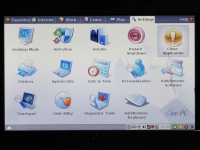
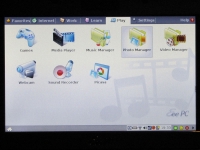
The custom OS provides a tabbed menu for the interface. There are six tabs, which are broken down into areas of interest; Favorites, Internet, Work, Learn, Play, and Settings. I will not review these menus in detail, however the images below will provide a quick overview of them.
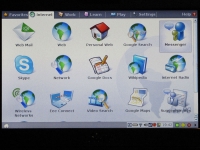
On the main tab (Internet) you will find the important Web-enabled applications. These include Firefox (shown as Web), Web Mail (which will give you links to Gmail, Hotmail, Yahoo and AOL), Messenger (Pidgin), Skype, Google Search, Wikipedia, Wireless Network Settings, and various other applications.
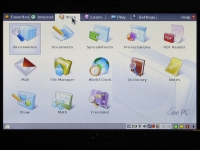
In the above right image, the Work tab is shown. Here the necessary local version of common business related applications can be found. These applications include Office applications by OpenOffice.org 2.0 (similar to MS Office - Word, Excel, Powerpoint, Paint), PDF Reader, Dictionary, and several others.
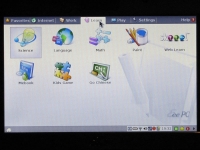
For the Learn tab there are several educational applications which should be helpful for the kids in Middle School. Some of these applications are trial editions, which you will need to purchase to fully use them. Finally, the Play tab. When you are done working or learning it's time to have some fun. This includes an audio/video player, several games (Solitaire, Tetris clone, Sudoku, and several others), and Google's Picasa application.
The final tab is Settings, here you can change system settings, add/remove software and hardware. There are also other utility applications which many users will find useful (anti-virus, diagnostic tools, and a disk utility).